
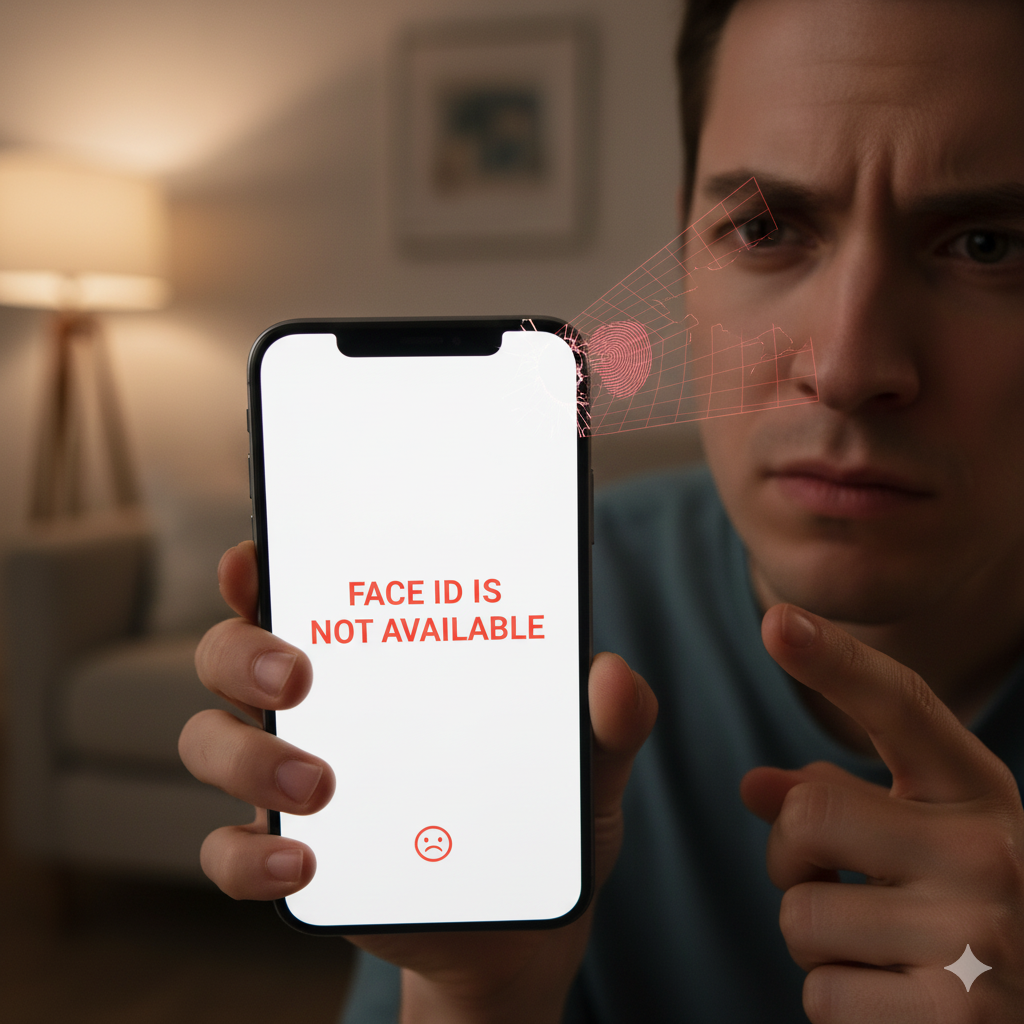
We’ve all experienced that moment of micro-frustration. You pick up your phone, swipe up, and… nothing. The little lock icon at the top of the screen just stares back, stubbornly closed. You try again. You angle your phone, move it closer to your face, and still—you’re locked out.
Defeated, you give up and punch in your 6-digit passcode like it’s 2010.
When your phone’s face recognition (like Apple’s Face ID or Android’s Facial Unlock) stops working, it’s more than just an inconvenience. It’s a breach in the seamless convenience you’ve come to rely on. It’s a core feature of your $1,000+ device failing, and it’s deeply frustrating. Is it a bug? Is it broken? Did you do something?
Before you resign yourself to a life of typing in your passcode, you should know that this is a common—and often fixable—problem. As professionals who handle complex phone repair San Antonio issues daily, we’ve seen every possible reason for a Face ID failure.
The causes range from a 10-second fix you can do yourself to a critical hardware failure that needs an expert. Here’s the definitive breakdown of why your face unlock is failing and what to do about it.
Section 1: How Does Face Recognition Actually Work?
First, it’s crucial to understand that modern face recognition is not just “taking a picture” with your selfie camera. It’s an incredibly complex 3D scanning process.
For iPhone Users: The TrueDepth System (Face ID)
Apple’s Face ID is the industry gold standard. It’s a cluster of high-tech sensors housed in the “notch” or “Dynamic Island” at the top of your screen. It includes:
- A Dot Projector: This is the star of the show. It projects over 30,000 invisible infrared (IR) dots onto your face in a known pattern.
- An Infrared Camera: This camera reads the distortion of that 30,000-dot pattern as it hits the unique contours of your face (your nose, eyes, chin).
- A Flood Illuminator: This is an invisible IR flash that allows the system to see your face even in total darkness.
The phone’s processor then takes this 3D “depth map” and compares it to the secure map it stored when you first set up Face ID. If it’s a match, you’re in.
For Android Users: Facial Unlock (It Varies)
On the Android side, the technology varies widely by manufacturer.
- High-End (e.g., Google Pixel): Some models, like Google’s Pixel 4-series (and newer Pixels to an extent), use a similar 3D-mapping system with a dot projector and IR camera.
- Most Other Models: The majority of Android phones use a simpler, less-secure 2D method. They use the standard front-facing selfie camera to identify your face. This is why many of these phones can be fooled by a photograph and why they often fail in low-light conditions.
For the rest of this article, we’ll focus primarily on the 3D-mapping systems (like Face ID) because their failures are more complex and common.
Section 2: The “Easy Fixes” You Must Try First
Before you panic, 90% of sudden face recognition failures are caused by one of these simple, fixable issues.
1. The Obvious: Physical Obstructions
The TrueDepth system relies on a perfectly clear line of sight. It’s not one camera; it’s a cluster of sensors.
- A Smudged Sensor: You didn’t just smudge your selfie camera; you smudged the dot projector next to it.
- The Fix: Take a soft, microfiber cloth and thoroughly wipe the entire black sensor array in the notch. Don’t just wipe the camera lens you can see.
- A Bad Screen Protector: This is a major culprit. A cheap, badly-installed, or cracked screen protector can block or refract the invisible IR dots, making your 3D face map unreadable.
- The Fix: Carefully peel off your screen protector and try Face ID again. If it works instantly, you’ve found your problem.
- A Bulky Case: Is the lip of your new phone case too thick? It might be casting a tiny shadow or blocking the sensors at an angle.
- The Fix: Take the phone out of the case and try again.
2. The Personal: Your Appearance Changed
The 3D map your phone has stored is precise. If you suddenly change your appearance, the system can get confused.
- Common Changes:
- New, thick-framed eyeglasses.
- Sunglasses (most sunglasses block IR light, making you invisible to the sensors).
- A new, heavy beard.
- Recent facial surgery or significant swelling.
- A mask (the old 2020-2022 nemesis, though new updates have “Face ID with a Mask”).
- The Fix:
- Go to Settings > Face ID & Passcode.
- Try adding an “Alternate Appearance.” This lets you scan your face a second time (e.g., with your new glasses on) and store it.
- If that fails, your best bet is to tap “Reset Face ID” and set it up from scratch.
3. The Glitch: A Simple Software Crash
Your phone is a computer, and computers crash. Sometimes, the software service that runs Face ID just gets “stuck.”
- The Fix (Force Restart): This is the #1 cure for most “ghost in the machine” problems. It’s not just turning it off and on; it’s a hard reboot.
- On a modern iPhone (8 or newer):
- Quickly press and release the Volume Up button.
- Quickly press and release the Volume Down button.
- Press and HOLD the Side (power) button. Keep holding it, even when you see “slide to power off,” until the screen goes black and the Apple logo appears.
- On a modern iPhone (8 or newer):
- The Fix (Check for Updates): That bug you’re experiencing might be a known issue.
- The Fix: Go to Settings > General > Software Update. If an update is available, install it. This often includes bug fixes for hardware.
Section 3: The “Red Alert” – When It’s a Hardware Failure
If you’ve tried all the easy fixes and it’s still not working, you’re likely facing a hardware problem. This is especially true if you see one of these dreaded messages:
“Face ID is Not Available, Try Setting Up Face ID Later”
“Unable to Activate Face ID on this iPhone”
These are not glitch messages. These are hardware failure messages. This means your phone “pinged” the TrueDepth sensor system, and the components either failed to respond or reported a fatal error.
This is where the real “little known” causes come in.
Cause 1: Drop Damage (The Obvious Killer)
You dropped your phone. The screen might not even be cracked, but the shock from the impact was enough.
- What Happened: The Face ID module is a group of tiny, fragile sensors. A hard jolt can knock the dot projector out of alignment with the IR camera. They are calibrated to work together with microscopic precision. If they are even a fraction of a millimeter off, the system fails.
- The Fix: This requires a professional-level repair. The components must be inspected, and in some cases, re-aligned in a special calibration machine.
Cause 2: Water Damage (The Silent Killer)
Your phone is “water-resistant,” not waterproof. The earpiece speaker grille, which is part of the sensor array, is a common entry point for moisture, steam (from your shower), or sweat.
- What Happened: A tiny drop of moisture got inside and caused corrosion on the hyper-sensitive flex cable connecting the Face ID module to the logic board. The phone looks perfect from the outside, but inside, a critical connection has been eaten away.
- The Fix: This is an advanced microsoldering repair. A technician must open the phone, diagnose the corrosion under a microscope, and meticulously clean or repair the damaged connection.
Cause 3: The Botched Screen Repair (The Most Common Cause)
This is the #1 reason we see for Face ID hardware failures.
- The Scenario: You cracked your screen a few months ago. You took it to a cheap, “fast” repair kiosk at the mall. They fixed your screen for a “great price,” and you went on your way. Now, your Face ID has suddenly failed.
- What Really Happened: This is a dirty secret of the repair industry. The Face ID sensors are NOT part of the screen. They are part of the original phone, paired (or “serialized”) to your phone’s unique logic board.
- During a screen replacement, a technician must carefully remove this fragile sensor assembly from your old, broken screen and transfer it to the new one.
- This assembly is attached by a paper-thin flex cable that is notoriously easy to tear or damage.
- An inexperienced or rushed technician will tear this cable, breaking Face ID permanently.
- Even worse: If they damage the original, paired module, they cannot just replace it with a new one. A “new” Face ID module (even a genuine Apple part) will not work. The phone’s security chip will reject it as an unauthorized part.
This is why you must trust your device to a high-level expert. A cheap screen swap can lead to a multi-hundred dollar problem. A professional iPhone repair San Antonio service will have the microsoldering tools and expertise to perform this delicate “face-transplant” without damaging the delicate, paired components.
Section 4: Your Action Plan: What to Do Now
- Do the Easy Fixes First. Thoroughly clean the sensor notch. Remove your case and screen protector. Try an “Alternate Appearance” and “Reset Face ID.” Perform a Force Restart. Check for software updates.
- STOP If You See a Hardware Error. If you see “Face ID is Not Available,” do not factory reset your phone. This is a common mistake. It will not fix a hardware error, and you will just waste hours erasing and restoring your data for no reason.
- Get a Professional Diagnosis. At this point, you need an expert. Bring your phone to a reputable repair shop. We can run specialized diagnostics to determine which part of the TrueDepth system is failing—the Dot Projector, the IR camera, or the Flood Illuminator—and determine if the cause is a simple disconnected cable, corrosion, or a fatal tear from a previous repair.
Frequently Asked Questions (FAQs)
Q1: Why does my Face ID work in the dark but not in bright sunlight?
A1: This is a common and fascinating problem. The sun is the ultimate source of infrared (IR) light. If you are in direct, bright sunlight, the sun’s IR rays can “flood” and “blind” the delicate IR camera, making it unable to see the 30,000 IR dots from your phone. It’s like trying to see a flashlight in broad daylight.
Q2: Can I replace the Face ID module myself?
A2: Absolutely not. As we explained, the Face ID module is “serialized” or cryptographically paired to your phone’s logic board. Even if you bought a genuine Apple replacement part and installed it perfectly, the phone would reject it. This is a security feature to prevent someone from stealing your phone and swapping the module to get access. This repair can only be done by Apple or a high-level microsoldering specialist who can repair the original module.
Q3: My Face ID works for unlocking the phone, but it fails for Apple Pay or App Store purchases. What’s wrong?
A3: This is almost always a software glitch. Go to Settings > Face ID & Passcode and try toggling the switches for “Apple Pay,” “iTunes & App Store,” and “Wallet” off and then back on again. If that fails, perform a Force Restart. This is very rarely a hardware issue.
Disclaimer
The information provided in this article is for informational and educational purposes only. The diagnostic steps, troubleshooting advice, and potential causes described are based on common issues seen by repair professionals.
This content is not a substitute for a professional diagnosis by a qualified technician. Smartphone facial recognition systems are highly complex, delicate, and often “paired” to the device’s main processor.
Attempting to open your device, test components, or perform any repair yourself based on this information is done entirely at your own risk. You risk causing irreversible damage to your phone’s screen, logic board, or delicate sensor arrays. We assume no liability for any damage to your device, loss of data, or any personal injury that may occur as aR result of following any information provided in this post.


