
Written by: Steve Garza
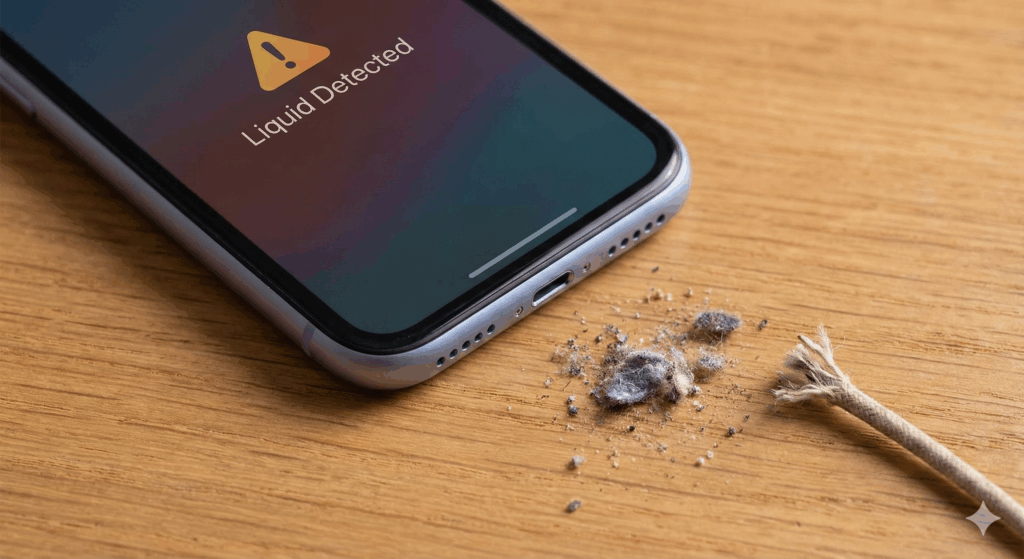
You plug your phone in to charge before bed, just like every other night. But instead of that satisfying “ding” that lets you know the battery is juicing up, you get a blaring alarm and a scary icon: a water drop.
“Liquid Detected in Lightning/USB-C Connector. Disconnect to allow the connector to dry.”
Panic sets in. You touch the port. It’s dry. You check the table. Dry. You haven’t been near a pool, a sink, or even a glass of water in hours. So, why is your phone convinced it’s drowning?
At Cellular Zone, we call this the “Phantom Moisture” glitch, and it drives our customers crazy. While this feature is designed to save your phone from short-circuiting, the sensors can sometimes be too sensitive.
In this guide, I’m going to walk you through exactly why this happens to dry phones and, more importantly, how to bypass it safely so you can charge your battery.
Note: If you know your phone actually took a swim, please stop reading and bring it to our professionals immediately. Electricity + Water = Dead Logic Board. You can find us at our [Locations].
Section 1: Why Does My Phone Think It’s Wet?
Before we fix it, you need to understand what is triggering the sensor. It isn’t always liquid water.
1. The “Humidity” Factor
This is the most common culprit. If you take hot showers and leave your phone on the bathroom counter, steam can condense inside the charging port. It’s not enough water to damage the phone, but it’s enough to bridge the tiny electrical pins, tripping the sensor.
2. Pocket Lint and Debris
Believe it or not, lint is conductive. If you carry your phone in your jeans pocket, compressed lint can jam into the bottom of the port. If that lint is slightly damp (from sweat or humidity), the phone reads it as a “liquid connection.”
3. A Damaged Cable
Sometimes, the phone is fine, but the cable is the problem. If the connectors on your lightning or USB-C cable are dirty, corroded, or wet, the phone will block the charge to protect itself.
Section 2: Immediate Steps (The “Do Not” List)
Before you start troubleshooting, let’s cover the things you should never do, despite what you read on random forums.
- DO NOT use a hair dryer: Blasting hot air into the port can melt the internal adhesives that keep your screen waterproof. You are trading a charging problem for a screen problem.
- DO NOT use rice: We have said it a thousand times at our repair counters—rice is a myth. It creates starch dust that gets stuck in the port, making the “debris” problem worse.
- DO NOT jam a metal object inside: Poking around with a metal paperclip can short out the pins (which carry power). This can blow the “Tristar” (charging) chip on your motherboard.
Section 3: How to Clear the Alert (Step-by-Step)
If your phone is truly dry, follow these steps in order.
Step 1: The “Gravity Tap”
This sounds primitive, but it works.
- Unplug any cables or accessories.
- Hold your phone with the charging port facing the floor.
- Gently tap the top of the phone against your hand (palm) several times.
- This helps dislodge any trapped water droplets or loose debris sitting on the contacts.
Step 2: Dry Air Flow
Place the phone in a well-ventilated area. If you have a small desktop fan, point it at the charging port from a distance (about 12 inches away). Let it sit for 30 minutes.
- Pro Tip: Do not place it in direct sunlight to “dry it out.” Overheating the battery is bad news.
Step 3: Clean the Port (The Safe Way)
If air didn’t work, you likely have conductive debris (lint) bridging the pins.
- Get a wooden toothpick or a plastic dental pick. (Avoid metal!)
- Gently—very gently—scrape the bottom of the port. You will be shocked at how much belly-button lint comes out.
- If you have a can of compressed air, give it a quick burst after loosening the lint.
Step 4: Check Your Cable
Try a different charging cable. If the alert disappears with a new cable, throw the old one away. The contacts on the cable plug might have oxidized (turned green/black), which tricks the phone sensors.
Section 4: The “Emergency Override” (Use with Caution!)
If you have an iPhone, you might see an option that says “Emergency Override” when you plug the cable back in.
Should you use it? Only if you are 100% certain the port is dry.
The “Liquid Detected” alert is a software safeguard. By hitting “Emergency Override,” you are telling the phone, “I don’t care if there is a short circuit, send the power anyway.”
- If the port is actually wet: You will fry the charging contacts, and potentially the motherboard.
- If the port is dry (software glitch): It will charge fine.
Expert Advice: If you have a wireless charger (MagSafe or Qi pad), use that instead. Wireless charging bypasses the charging port entirely. It’s the safest way to get power while waiting for the port to dry out.
Section 5: When It’s a Hardware Failure
If you have cleaned the port, tried new cables, waited 24 hours, and the alert still won’t go away, you have a hardware problem.
Corrosion on the Pins
Even if the water is gone, it may have left behind corrosion (green rust). This corrosion conducts electricity, fooling the sensor into thinking it’s still wet.
Damaged Charging Port
The pins inside the port are microscopic. If one is bent or touching another, it creates a short circuit that mimics water damage.
In this case, the charging port usually needs to be replaced. This is a standard repair for us. You can [Book an Appointment] online to skip the wait, or check our [Locations] to drop by.
If your phone is older and you are tired of dealing with charging issues, it might be time to upgrade. We have a great selection if you want to [Buy a Device] that works flawlessly. Alternatively, we can buy your glitchy phone from you—check our [Sell Mobile Device] page for a quote.
Conclusion
The “Liquid Detected” alert is annoying, but it’s there to protect your investment. Usually, a bit of patience, a wooden toothpick, and a fan will solve the issue.
However, if the “phantom moisture” persists, don’t force it. Forcing electricity into a damaged port can turn a $50 repair into a $500 motherboard replacement. If you aren’t sure, let the experts at Cellular Zone take a look. We have the microscope tools to see exactly what is going on inside that tiny port.
Stay dry, and keep charging!
FAQs about Liquid Detection
Q1: Can I charge my phone wirelessly if liquid is detected?
A1: Yes! Wireless charging uses induction coils on the back of the phone, completely separate from the USB/Lightning port. It is safe to use while the port dries.
Q2: How long does it take for the liquid detected error to go away?
A2: It usually takes 1 to 4 hours for natural evaporation. If it lasts longer than 24 hours, you likely have debris or corrosion, not just water.
Q3: Will putting my phone in rice fix the liquid sensor?
A3: No. Rice absorbs moisture too slowly to be effective and introduces dust into the port. Use silica gel packets (the little bags found in shoe boxes) if you have them, otherwise, just use a fan.
Disclaimer
This content is for informational purposes only. Cellular Zone is not responsible for damage caused by improper cleaning methods (like using metal tools in charging ports) or by overriding safety sensors. If you suspect significant liquid damage, consult a professional immediately.


