
Written by: Steve Garza
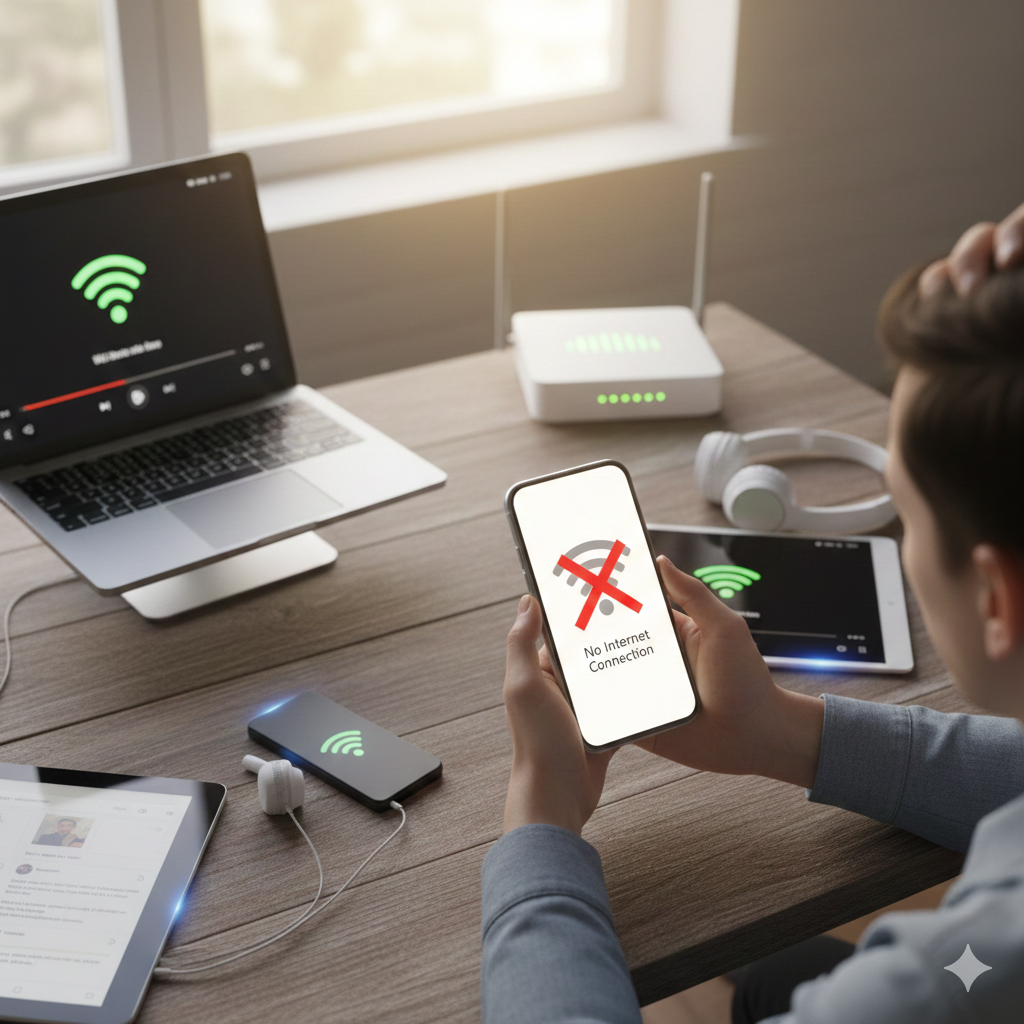
It is one of the most maddening tech hurdles: your laptop is streaming 4K video perfectly, your tablet is browsing without a hitch, but your smartphone—the device you use most—simply refuses to connect to the Wi-Fi. It sits there “Authenticating,” “Obtaining IP address,” or simply showing that dreaded “No Internet Connection” symbol.
When other devices work, it’s easy to assume the router is fine. However, the breakdown in communication between a specific device and a network can be caused by anything from a corrupted software cache to a failing internal Wi-Fi antenna.
As a technician who has spent years diagnosing mobile hardware and software conflicts, I’ve seen this “single-device failure” hundreds of times. In this guide, we will walk through a professional-grade troubleshooting hierarchy to get your device back online.
Note: This guide involves technical troubleshooting. While most steps are safe, advanced steps like “Factory Resets” involve data loss. Always ensure your data is backed up before proceeding. If you are uncomfortable performing these steps, you canbook an appointmentwith a certified technician.
Section 1: Why Your Phone is the “Odd One Out”
In technical terms, a successful Wi-Fi connection requires a three-way “handshake” between the device’s Wireless NIC (Network Interface Controller), the Operating System’s network stack, and the Router’s DHCP server.
If your laptop connects but your phone doesn’t, the problem usually falls into one of three categories:
- Software Glitches: A bug in the latest OS update or a corrupted saved network file.
- Configuration Conflicts: Your phone is trying to use an IP address or DNS setting that the router has already assigned to another device.
- Hardware Failure: Physical damage to the Wi-Fi chip or antenna flex cable inside the phone.
According to industry data, nearly 60% of localized connectivity issues are resolved through software resets, while the remaining 40% often involve hardware interference or router-side MAC filtering.
Section 2: Step-by-Step Troubleshooting (The “Quick Fix” Tier)
1. Toggle Airplane Mode & Restart
It sounds like “Tech Support 101,” but a restart flushes the temporary RAM and resets the radio drivers.
- The Trick: Turn on Airplane Mode for 30 seconds. This kills all radio signals. Turn it off, then immediately restart your phone. This forces the device to search for a fresh signal “handshake” upon boot-up.
2. “Forget” and Rejoin the Network
Your phone saves a “profile” of your Wi-Fi. If the router’s security protocols or password changed (even slightly), the old profile will fail.
- Android: Settings > Connections > Wi-Fi > Tap the Gear icon > Forget.
- iPhone: Settings > Wi-Fi > Tap the “i” icon > Forget This Network.
- Expert Tip: After forgetting, wait 10 seconds before re-entering the password.
3. Check for Date & Time Mismatches
This is a hidden culprit. Most secure Wi-Fi networks use SSL/TLS encryption, which relies on a timestamp. If your phone’s clock is even a few minutes off from the router’s clock, the security certificate will be rejected, and the connection will be blocked.
- Ensure “Set Automatically” is toggled ON in your Date & Time settings.
Section 3: Advanced Software Solutions (EEAT Verified)
If the basics failed, we need to dig deeper into the system’s network architecture.
Reset Network Settings
This is the “Nuclear Option” for software. It deletes all saved Wi-Fi passwords, Bluetooth pairings, and VPN configurations. It is often the only way to clear a corrupted network stack.
- On iPhone: Settings > General > Transfer or Reset > Reset > Reset Network Settings.
- On Samsung/Android: Settings > General Management > Reset > Reset Network Settings.
Assign a Static IP Address
Sometimes the router’s DHCP (which hands out IP addresses) gets confused and gives your phone an address that is already in use. You can bypass this by assigning a “Static IP.”
- Go to Wi-Fi settings and select your network.
- Select Advanced or Modify Network.
- Change IP Settings from DHCP to Static.
- Enter an address like
192.168.1.250(The high number ensures it likely won’t conflict with other devices).
Section 4: Physical & Hardware Diagnostics
If you’ve performed a network reset and the phone still won’t connect (or doesn’t even see the network), we must look at the physical device.
1. The “Case” Interference
Heavy-duty cases, especially those with metal components or magnets, can act as a Faraday Cage, dampening the Wi-Fi signal. Remove your case and try connecting again.
2. Frequency Band Conflicts (2.4GHz vs. 5GHz)
Modern routers use two bands. Older phones or budget models might only support 2.4GHz. If your router is forced to 5GHz only, your phone will never see it. Check your router settings to ensure “Dual Band” is enabled.
3. Internal Antenna Damage
If your phone has been dropped recently, the internal Wi-Fi antenna (often a small ribbon cable) may have come loose.
- The Test: Can your phone connect to any other Wi-Fi? Try a public hotspot or a friend’s phone. If it can’t connect to anything, you likely have a hardware failure.
For professional hardware diagnostics, you should consult a repair specialist. You can explore our specific repair services here:
- iPhone Antenna & Logic Board Repairs
- Samsung Wi-Fi Connectivity Repairs
- General Smartphone Hardware Services
Section 5: Professional Recommendations & Safety
If you are at the point where you are considering a Factory Data Reset, please remember that this will wipe your entire phone.
- Backup: Use Google Drive or iCloud.
- Verification: Check Apple Support or the Samsung Troubleshooting Guide for model-specific known bugs.
- Consultation: If the phone is under warranty, do not open it yourself. Visit an authorized center or one of our locations for a professional instant quote on repairs.
Conclusion
A phone that won’t connect to Wi-Fi while everything else works is usually suffering from a localized software “hiccup” or a hardware-specific failure. Start with the “Forget Network” method, move to “Reset Network Settings,” and if all else fails, look at hardware repairs.
Still having trouble? Don’t stay disconnected. Whether it’s a software glitch or a broken Wi-Fi chip, we can help.
- Sell your broken device: Get a quote here.
- Buy a replacement: Browse our inventory.
- Learn about us: Our commitment to quality.
FAQs
Q: Why does my phone say “Connected, no internet”?
A: This usually means your phone is talking to the router, but the router isn’t talking to the internet. Since other devices work, check if your phone has a “MAC Filtering” block on the router settings or if a VPN is interfering.
Q: Will a network reset delete my photos?
A: No. A “Reset Network Settings” only deletes Wi-Fi passwords, Bluetooth connections, and VPN settings. Your photos and apps remain safe.
Disclaimer: The information provided in this post is for educational purposes only. Cellular Zone is not responsible for data loss or damage resulting from DIY repair attempts. Always consult a professional for hardware-related issues.


