
Written by: Steve Garza
Introduction: When Your Connection Hits a Dead Zone
There is nothing more frustrating than looking at your flagship device and seeing “No Service” or a flickering 5G icon when you know you’re in a high-coverage area. In 2026, our phones aren’t just toggling between cellular towers; they are constantly negotiating handoffs between terrestrial 5G nodes and burgeoning satellite constellations. When this handshake fails, your data speeds tank, or worse, your calls drop entirely.
As someone who spends every day diagnosing hardware and software hiccups at Cellular Zone, I’ve seen how often these “bugs” are actually just modem stalls. The good news? You don’t need to wipe your photos or messages to fix it. You just need to know how to force the modem to “wake up” and re-authenticate with the network. If your hardware is physically damaged, however, you might need to book an appointment for a deeper look, but for most, a manual reset does the trick.
Section 1: Understanding the 5G and Satellite Handshake
The modem in your smartphone is a specialized processor that works independently of your main apps. With the integration of satellite-to-cell technology—standardized in recent 3GPP releases—your phone is now essentially a two-way radio capable of reaching space.
Sometimes, the modem’s software gets stuck in a loop. It might be desperately trying to hold onto a weak satellite signal while a perfectly good 5G small cell is right next to you. This “signal stickiness” leads to high latency and battery drain. A manual reset clears the temporary cache of the modem, forcing it to look at the surrounding spectrum with fresh eyes. It is the digital equivalent of taking a deep breath and looking at the map again.
Section 2: How to Manually Reset Your Phone’s 5G and Satellite Modem
The Software Toggle Method
Before touching deep settings, the “Power Cycle” of the radio is your first line of defense.
- Airplane Mode Flush: Swipe down and toggle Airplane Mode on. Wait a full 30 seconds. This allows the capacitors in the radio RF front-end to discharge. Toggle it off.
- Force Network Selection: Go to Settings > Cellular > Network Selection. Toggle “Automatic” to off. Select your carrier manually, wait for the error, then toggle “Automatic” back on. This forces a fresh re-registration on the HLRS (Home Location Register).
Resetting Network Settings (The “No Data Loss” Sweet Spot)
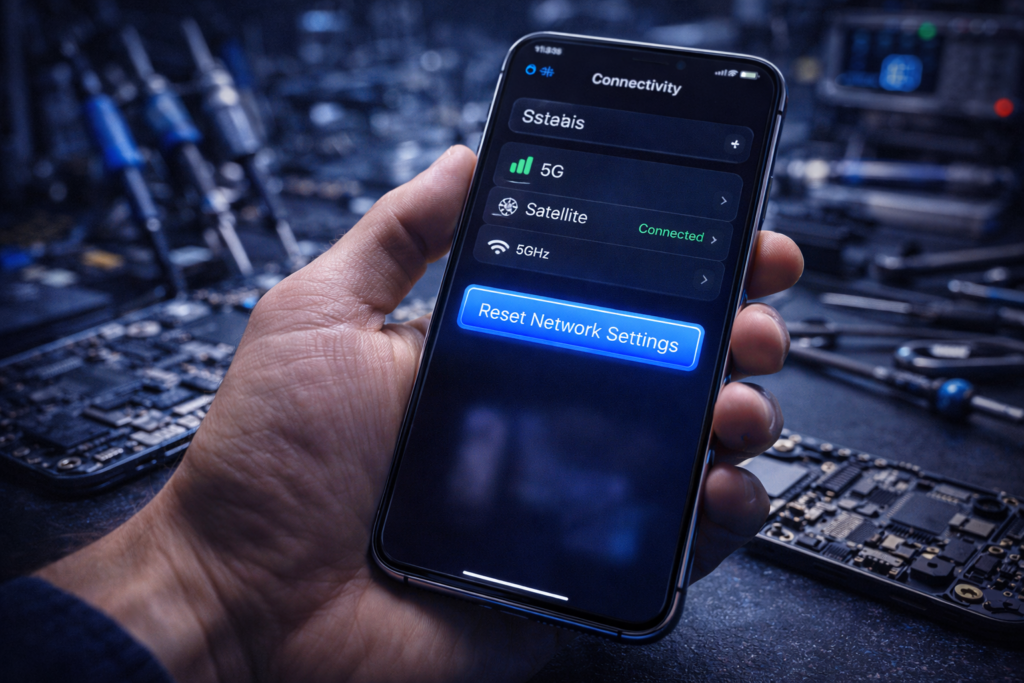
If the toggle fails, you need to go deeper without hitting the “Factory Reset” button. On both iOS and Android, “Reset Network Settings” is a surgical strike. It removes saved Wi-Fi passwords and Bluetooth pairings but leaves your photos, apps, and documents completely untouched.
Hardware-Level Modem Re-sync
In some cases, the physical SIM or eSIM profile can become “stale.” If you use a physical SIM, ejecting it while the phone is on and re-inserting it triggers a hardware interrupt that forces the modem to reboot its firmware. For those with specialized hardware like iPads, you can often find similar controls under iPad repairs guidance if the cellular model is acting up.
Section 3: When a Reset Isn’t Enough
While a software reset fixes 90% of connectivity issues, there is a physical reality to consider. Modems are connected to a series of antennas lining the frame of your phone. If you’ve recently dropped your device, even a small internal fracture can prevent the modem from locking onto a 5G signal.
If you’ve performed the steps above and still see “Searching…” or “SOS” in the status bar, it’s time to stop DIYing. You could have a failing baseband chip or a loose antenna flex cable. In these instances, it’s best to consult with a professional technician who can run a diagnostic on the motherboard. We see this often with iPhone repairs where a drop didn’t crack the screen but did unseat a sensitive internal connector.
Section 4: Conclusion and Final Thoughts
Connectivity is the lifeblood of the modern mobile experience. Learning how to manually reset your phone’s 5G and satellite modem is a vital skill that saves you time and unnecessary stress. Most of the time, your phone just needs a nudge to stop overthinking its connection to the stars and look at the tower down the street.
Stay proactive with your device’s health. If you find your phone is constantly failing to connect despite these resets, it might be an older model struggling with new 2026 frequency bands. In that case, you might want to check out newer devices that are better optimized for the current network landscape.
FAQs
Will resetting my modem delete my photos?
No. Resetting the modem or “Resetting Network Settings” only affects connectivity data like Wi-Fi passwords and Bluetooth pairings. Your personal files remain safe.
How often should I reset my network settings?
Only when you notice persistent “No Service” errors or significantly slower speeds than usual. It’s a troubleshooting step, not a weekly maintenance task.
Why is my phone staying on Satellite instead of 5G?
This is often due to “Cellular Handover” failure. A quick toggle of Airplane Mode usually reminds the modem to prioritize the faster terrestrial 5G network.
Disclaimer: This guide is for informational purposes. While the steps described are standard troubleshooting procedures, hardware issues may require professional repair. Always ensure your data is backed up to the cloud before performing any system-level resets.


