
How to Free Up Storage on Your iPhone and Stop Getting the “Storage Full” Alert
Written by: Steve Garza
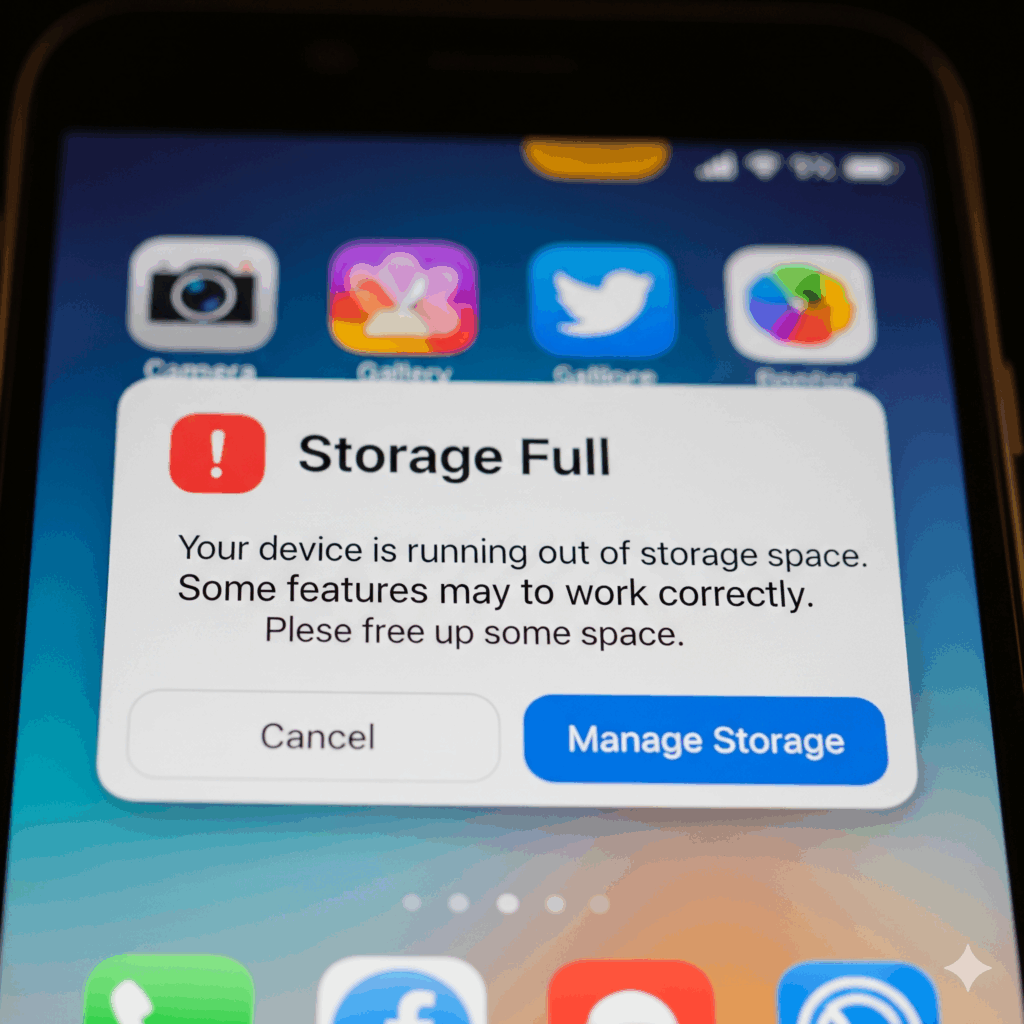
Few notifications are as universally dreaded by iPhone users as the persistent “Storage Full” alert. It pops up at the worst possible times—when you’re trying to capture a precious moment, download a critical app update, or save an important file. This isn’t just an annoyance; a consistently full iPhone can slow down performance, prevent app updates, and even impact the overall health of your device.
As specialists in device optimization and repair, we understand the frustration of limited storage. While modern iPhones come with generous storage capacities, our digital lives expand even faster, filling up gigabytes with photos, videos, apps, and documents. The good news is that you don’t necessarily need a new phone to solve this problem. There are many effective strategies to reclaim valuable storage space and keep those “Storage Full” alerts at bay. This guide will walk you through a step-by-step process, based on our expertise, to help you manage your iPhone’s storage like a pro.
Understanding iPhone Storage: Where Does All the Space Go?
Before you can effectively free up space, it helps to understand what’s actually consuming it. Your iPhone’s storage isn’t just one big bucket; it’s divided into categories that quickly add up. To get a clear picture of your current storage usage, go to Settings > General > iPhone Storage. This visual breakdown is your roadmap to identifying the biggest culprits.
Common storage hogs include:
- Photos & Videos: High-resolution photos, 4K videos, and Live Photos take up a significant amount of space. This is often the largest category for most users.
- Apps: Beyond the app itself, many apps store large amounts of data, including caches, downloaded content, and documents. Social media apps, streaming services, and games are often the biggest offenders.
- Messages: Over time, attachments in iMessage and SMS threads—especially photos, videos, and audio messages—can accumulate into gigabytes of data.
- System Data (formerly “Other”): This category includes temporary files, caches, logs, Siri voices, system resources, and more. It can sometimes swell disproportionately.
Understanding these categories helps you target your efforts more effectively. According to a recent tech survey, over 60% of smartphone users regularly struggle with insufficient storage, with photos and videos being the primary cause.
Practical Ways to Free Up Space: Your Step-by-Step Guide
Let’s dive into the actionable steps you can take to reclaim your iPhone’s storage.
1. Optimize Your Photos and Videos This is often the most impactful step. * Enable iCloud Photos with “Optimize iPhone Storage”: Go to Settings > Photos and select Optimize iPhone Storage. This replaces full-resolution photos and videos on your device with smaller, optimized versions while keeping the originals safely stored in iCloud. When you need a full-resolution version, it’s downloaded on demand. * Delete Duplicates and Unnecessary Media: Manually go through your photo library and delete blurry photos, duplicates, and videos you no longer need. The Photos app has a “Duplicates” album (iOS 16+) to help you find them easily. * Clear “Recently Deleted” Album: Photos and videos you delete remain in the “Recently Deleted” album for 30 days. To free up space immediately, go to this album and select “Delete All.”
2. Manage and Offload Unused Apps Many apps sit on your phone taking up space without being used. * Offload Unused Apps Automatically: Go to Settings > App Store and toggle on Offload Unused Apps. This automatically removes apps you don’t use often but keeps their data, so if you reinstall them, your information is still there. * Manually Delete Data-Heavy Apps: Review your iPhone Storage list (Settings > General > iPhone Storage). Identify apps that consume a lot of storage. For social media apps or streaming services, consider deleting and reinstalling them to clear their cached data, or manually clear their caches within the app’s settings if available.
3. Clean Up Your Messages Message attachments are silent storage killers. * Set Message History to Auto-Delete: Go to Settings > Messages > Message History > Keep Messages. Change this from Forever to 30 Days or 1 Year. Your phone will automatically delete old messages and their attachments. * Manually Delete Large Attachments: In Settings > General > iPhone Storage > Messages, you’ll see categories like Photos, Videos, GIFs and Stickers, etc. Tap on these, then Edit to select and delete large attachments you no longer need.
4. Clear Safari Cache and Browser Data Your web browser also stores a surprising amount of data. * Clear Safari History and Website Data: Go to Settings > Safari and tap Clear History and Website Data. Be aware this will log you out of websites and clear your browsing history.
5. Understand and Manage “System Data” “System Data” (formerly “Other”) can sometimes grow very large. * Restart Your iPhone: A simple restart can often clear out temporary files contributing to “System Data.” * Update iOS: Ensure your iPhone is running the latest version of iOS. Updates often include optimizations that can help manage system files more efficiently. * Factory Reset (Last Resort): In extreme cases, if “System Data” is excessively large and nothing else works, a factory reset (after backing up your data!) can clear it entirely.
Proactive Storage Management for the Future
Freeing up space is great, but preventing it from filling up again is even better.
- Utilize Cloud Storage: Beyond iCloud Photos, consider other cloud services like Google Photos, Dropbox, or OneDrive for backing up files, photos, and videos, allowing you to remove them from your device.
- Stream, Don’t Download: For music and video services, stream content rather than downloading it for offline viewing/listening, whenever possible.
- Regularly Review Apps & Media: Make it a habit to periodically check your storage usage and clean out unnecessary items. A quick review once a month can save you from future “Storage Full” alerts.
If you find that your iPhone is constantly full despite your best efforts, and its performance is lagging, it might be an indication of other underlying issues. Sometimes a phone that’s perpetually out of space can also suffer from other problems that a professional can help diagnose. We offer comprehensive services for other device repairs and can provide expert advice on optimizing your device’s performance beyond just storage.
Conclusion and Final Thoughts
The “Storage Full” alert is a common headache for iPhone users, but it doesn’t have to be a permanent state. By systematically tackling your photo library, managing apps, cleaning up messages, and understanding your system data, you can reclaim significant space and ensure your iPhone runs smoothly. Proactive management, coupled with smart cloud utilization, will keep your device agile and responsive.
Don’t let a full iPhone slow you down or prevent you from capturing life’s moments. Implement these strategies today and enjoy a faster, more functional device. If you’ve tried everything and your phone is still struggling with storage or performance, our experts are here to help. Visit our website or book an appointment to get professional assistance.
FAQs
Q1: Will clearing my browser history delete saved passwords?
A1: Clearing your browser history and website data (like the Safari option mentioned) will log you out of websites and remove cookies, but it generally does not delete passwords saved in your iPhone’s Keychain.
Q2: Is “System Data” a problem if it’s large?
A2: While “System Data” naturally contains necessary files, an unusually large or constantly growing “System Data” category can indicate an issue with cached files not being properly cleared. A restart often helps, but persistent issues might point to a software glitch that an iOS update or a factory reset can resolve.
Disclaimer: The information provided in this post is for educational purposes only and is not intended as professional advice. While these tips are generally safe, always ensure you back up your data before making significant changes or deleting files. Consult with a professional technician if you are unsure or if your device continues to experience storage or performance issues.


